SlideQ user guide
Create a presentation, invite participants, collect responses, and review each session.
SlideQ collects audience input through polls, quizzes, word clouds, and Q&A during a presentation. Presenters sign in to prepare their content. Participants use a shared link, QR code, or access code to join.
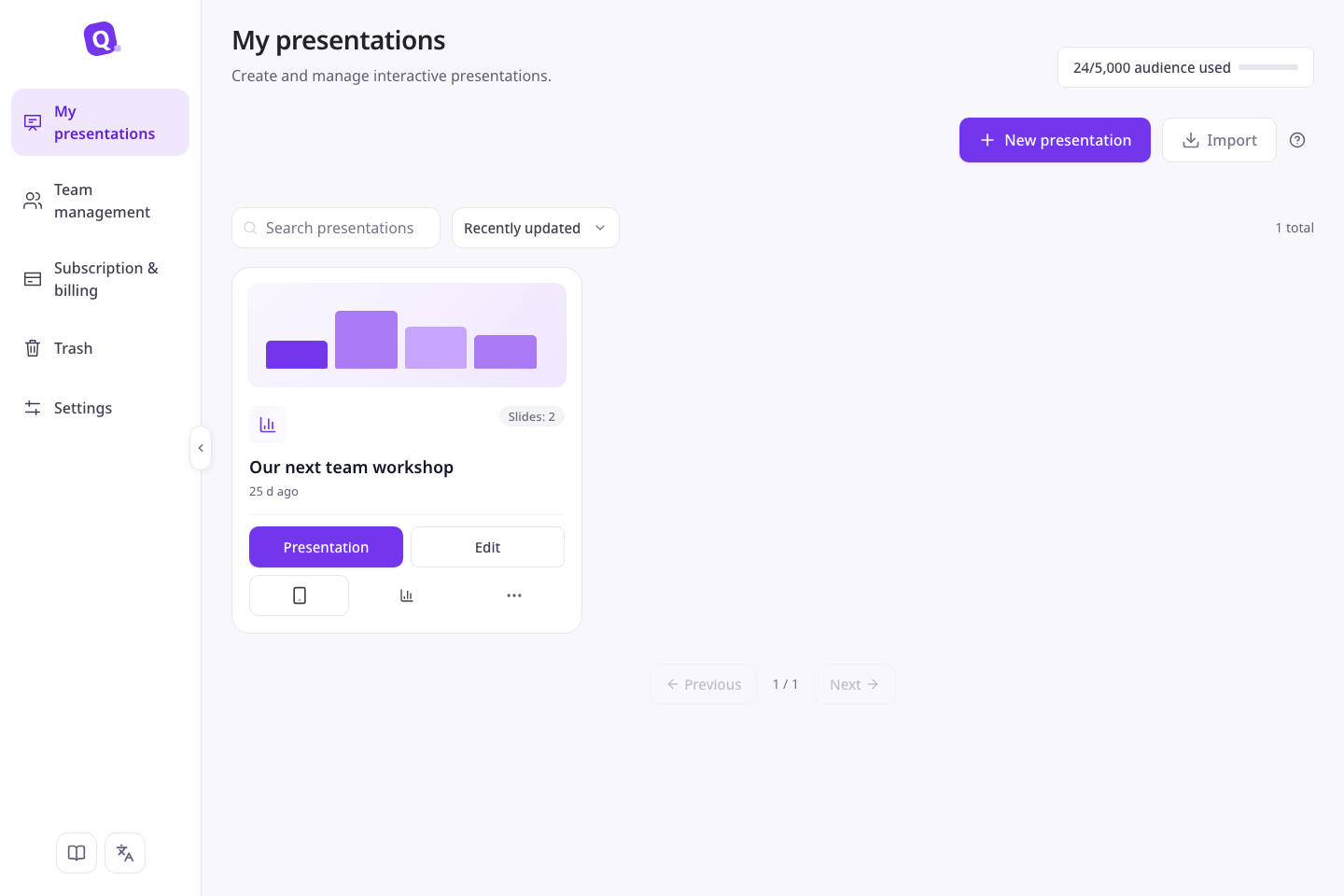
Start preparing content with New presentation or Import at the top, or open existing content from the presentation list below.
Choose a guide
Create your first presentation
Edit slides
Import a file
Present live
Join a presentation
Results and reports
Start with one poll
Follow Create your first presentation to learn the complete flow with one question. If you already have a deck, start with Import a file. Share Join a presentation with your participants.
Screenshots are example screens using demo data. Your content, access permissions, and presentation state can change which items appear.
Search and switch languages
Use Search to find a feature. On a small screen, open the navigation menu to browse guides. The document language menu switches between Korean and English while keeping the same topic.
Open your workspace to prepare a presentation. You will be asked to sign in if needed.