Join a presentation
Join with a link or access code, verify email if required, and answer the presenter's questions.
1. Get ready to join
You need an internet-connected phone or browser and the presenter's join link, QR code, or access code. You do not need to sign in with a presenter account. If the presentation requires email verification, you need access to your inbox.
The editing address and participant address are different. Use the join QR or link supplied by the presenter.
2. Open the link or enter the eight-character code
Open the shared link or scan the QR to reach that presentation's entry screen. If you start on the participant site's home page, enter the eight-character access code and select Join presentation.
The code field and join button are briefly disabled while the page gets ready. Enter the code once the field becomes available. If it stays disabled, check your internet connection and refresh the page.
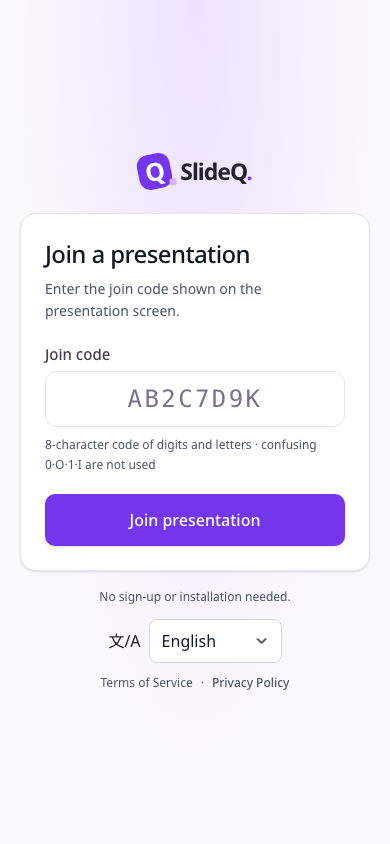
The code combines uppercase letters and numbers and excludes 0, O, 1, and I. Lowercase input is converted to uppercase and spaces are removed. This is different from the email verification code, which contains six digits.
3. Enter your name and choose an avatar
Enter Your name using no more than 30 characters and choose an avatar under Pick an avatar for yourself. A name containing only spaces is not accepted. Select Join and wait for entry to complete.
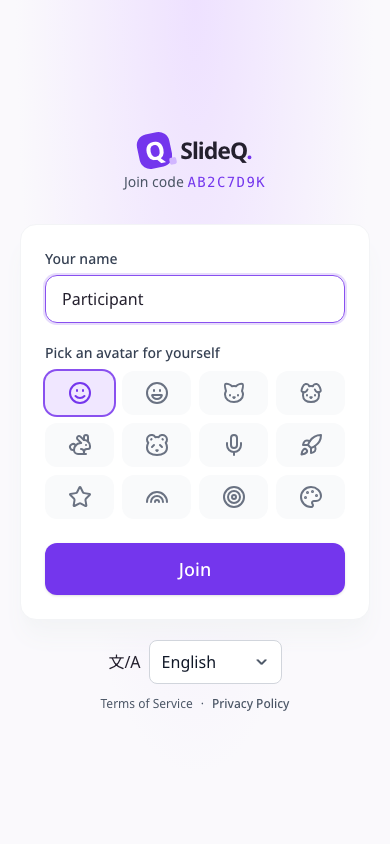
Choose an avatar below the name field and use the button underneath to join. If email verification is required, that step appears before this name form. The Terms of Service and Privacy Policy that apply to joining are linked below the language selector. They open in a new tab, so the entry form you were filling in stays open.
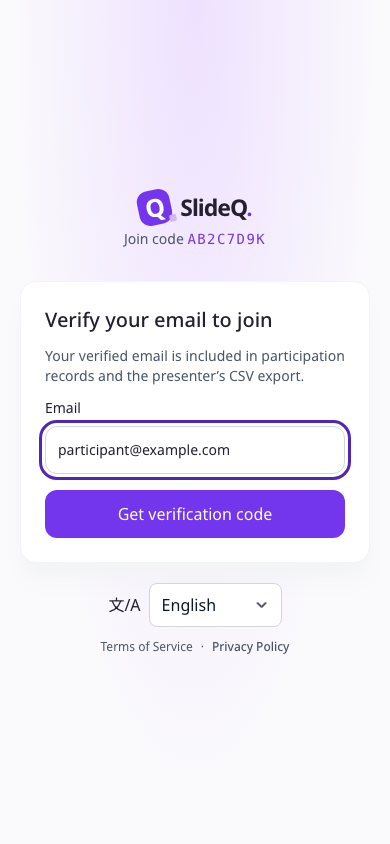
4. Verify your email when required
- If allowed domains are listed, use an email address from one of those domains.
- Select Get verification code.
- Enter the six-digit code from the email within ten minutes and select Verify code.
- Continue to the name and avatar form to join.
If the email does not arrive, check the address and your spam folder. Wait for the displayed resend countdown before selecting Resend code. Select Change email if you entered the wrong address. Your verified email is included in participation records and the presenter's CSV export. SlideQ no longer saves participation emails in browser storage. Emails saved by older versions are removed when you open the verification screen, so enter your email again. Browser autofill is controlled by your browser settings.
5. Understand the two waiting states
The presentation-not-started screen automatically checks for the presenter to begin a live session. After joining, a question's waiting-for-responses state means the presenter has not opened that question for answers yet.
Your screen follows the presenter as they change slides. You may need to wait for responses to open on each new question. A slide that only displays content may have no submit button.
6. Submit a poll answer
- Read the question and the number of choices allowed.
- Select one option or up to the displayed limit.
- Select Submit answer.
- Check the sent confirmation.
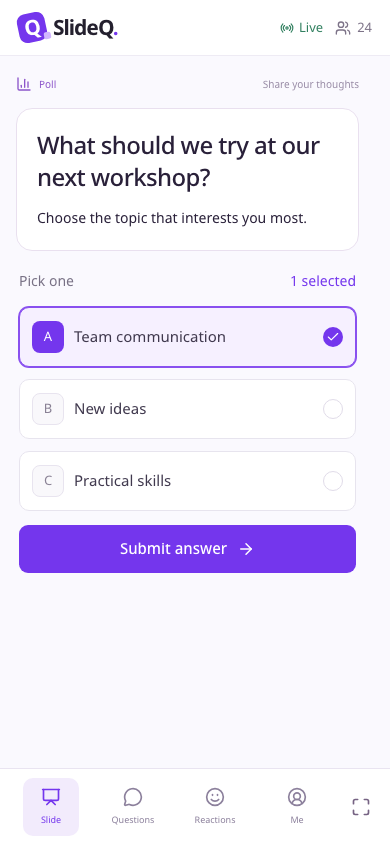
Read the instruction above the options for the selection limit or response state, then choose your answer. A selected option alone does not mean it has been submitted. Once results are revealed, option results appear and new answers are no longer accepted.
After submission, the poll shows your recorded answer. The presenter selecting Reopen does not erase that answer or make it editable again. For quizzes, word clouds, and other types, follow the input instructions on each screen. In Q&A, enter your question and use the question submission button. Q&A submission is independent of the poll response state; if prior approval is enabled, wait for the presenter to publish your question.
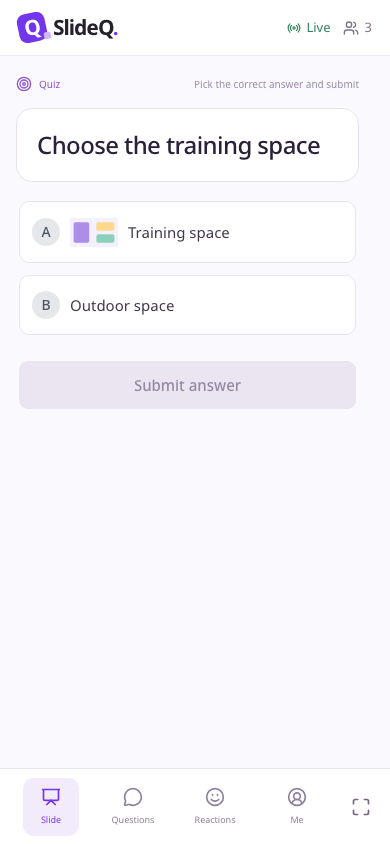
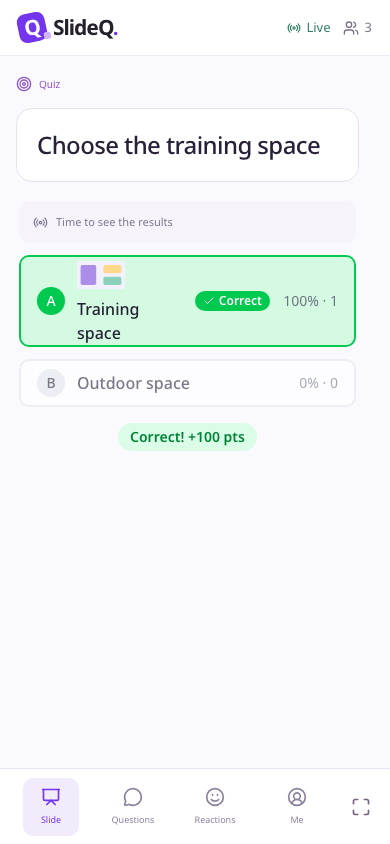
For a quiz with images, check each picture and label, choose one option, then select Submit answer. For example, choosing “Training space” highlights that option. After submitting, wait for the presenter to show the results; the options retain their images alongside the correct answer and your score. Rejoining with your existing participant record restores your submitted answer. If an image is missing, check your connection and rejoin. Let the presenter know if it still does not appear.
7. Troubleshoot entry, submission, and connections
| Problem | What to do |
|---|---|
| The code is rejected | Ask for the current code and check its length and permitted characters. |
| The participant limit has been reached | Tell the presenter. Repeatedly joining with a different name does not resolve the limit. |
| Submit is unavailable | Check that an answer is selected, responses are open, and you have not already submitted. |
| Sending an answer fails | Check your connection and use the retry submission action shown. First check whether a sent confirmation already appears. |
| Connection failure on the entry screen | Check your internet connection and use the retry button. |
| Disconnected or reconnecting during participation | Check your internet connection and wait for automatic reconnection. If the presenter changes slides or response status while you connect, the current state is loaded again. Once connected, check the current slide, response status, and your submitted answer. |
| Session connection expired | Select Rejoin and join again from the entry screen. |
| Email code error | Check for a mistyped or expired code and request a new one if needed. |
8. When the presentation ends
An end notice means answers can no longer be submitted. Ask the presenter for joining instructions if another session is planned. From the entry screen, Join with another code lets you enter a different presentation code.
Avoid including personal information you do not want to share in your name or answers. Before joining, you can read the Terms of Service and Privacy Policy linked at the bottom of the entry screen. If asked for email, read the entry guidance as well.
Answer a scale question
When the presenter opens responses, read the numeric range and the start, middle and end labels. Zero is a valid answer on a 0–8 scale. Select a number or star, then choose Submit answer. Use arrow keys to move between choices and Home or End to select an endpoint.
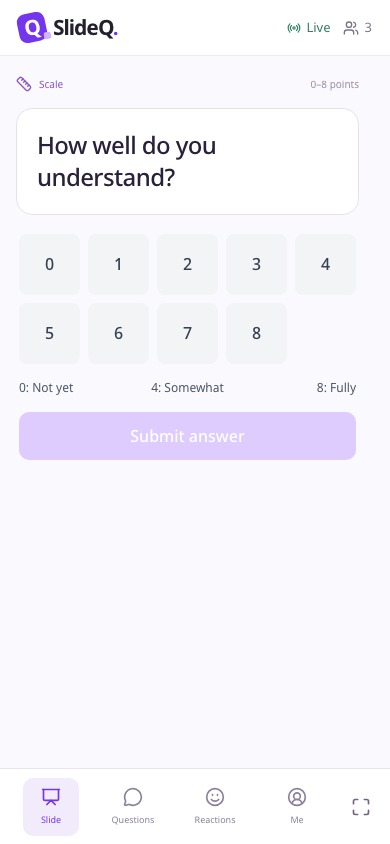
Your selected value and Submitted confirm completion. Rejoining restores your submitted value. If sending fails, check your connection and choose Submit again. If the presenter changes the range before you submit, select again within the new range. Answers already submitted retain their original values.
Check participant draw results
When the presenter draws from session participants, your screen shows the winner's name and #number. Several people may share a name, so look for You were selected! to confirm that you won. This message uses your participant record rather than matching names.
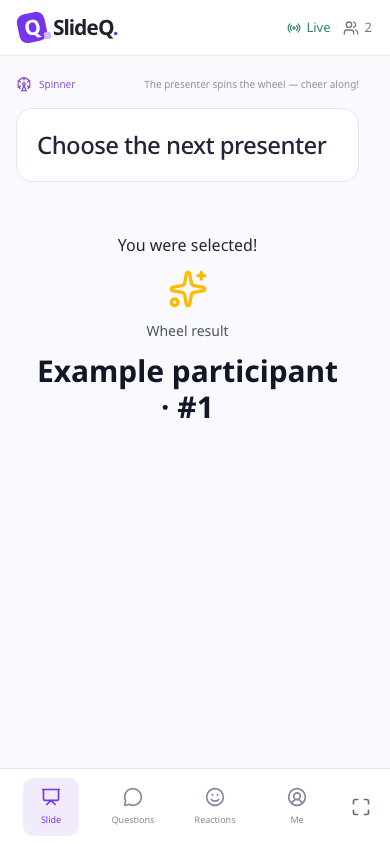
If you joined before the draw, a temporary disconnection does not remove you from the candidates. If you missed the result, rejoin through your existing participant record. Joining later does not change a completed draw's candidates; you enter the next draw. No answer submission is required and no quiz points are awarded.
Check Q&A questions and upvotes
After joining, open a Q&A slide or Questions at the bottom of the screen. Enter a question of up to 300 characters, such as “Where can I download the example materials?”, and submit it. Check the sent confirmation. If it says approval is pending, your question will not appear in the public list until the presenter publishes it.
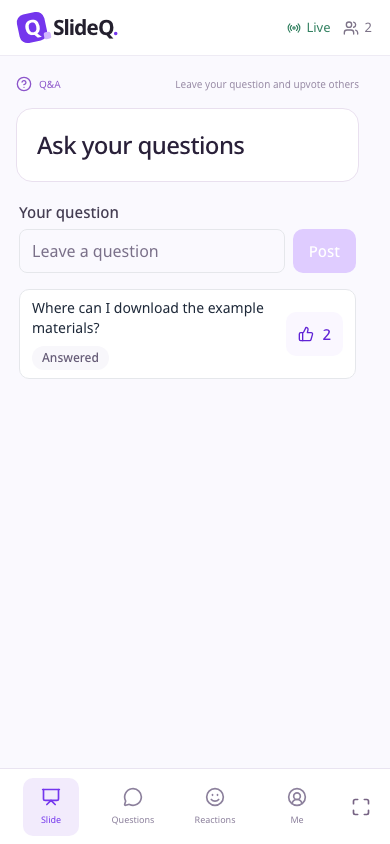
Upvote a public question you would like discussed. The completed state confirms your vote; each participant can upvote each question once, and votes cannot be undone. Hidden questions cannot receive upvotes. The list refreshes about every 10 seconds. If loading fails, reload the list. If an upvote fails, check your connection and retry.Rejoining with the same participant record does not add another vote for a question you already upvoted. If the error persists, let the presenter know. Do not create a new participant identity to repeat your vote.
Upvote an idea
When the presenter opens an ideas board and ideas appear, select Upvote on an idea you support. For example, upvoting “Practice together in small groups” changes the button to Upvoted and displays the count. Rejoining with the same participant record restores this state. You can upvote each idea once, and votes cannot be undone.
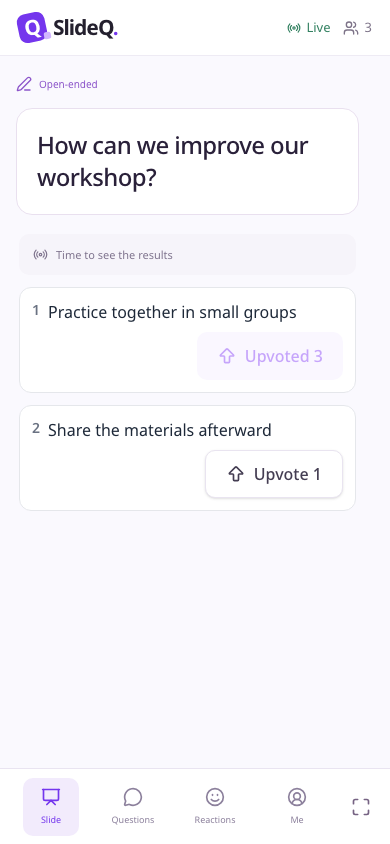
If voting fails, check your connection and retry with the same button. If the board fails to load, select Reload board. Let the presenter know if errors persist. Hidden ideas and ended presentations do not accept new upvotes. Counts update through live notifications and periodic list refreshes.
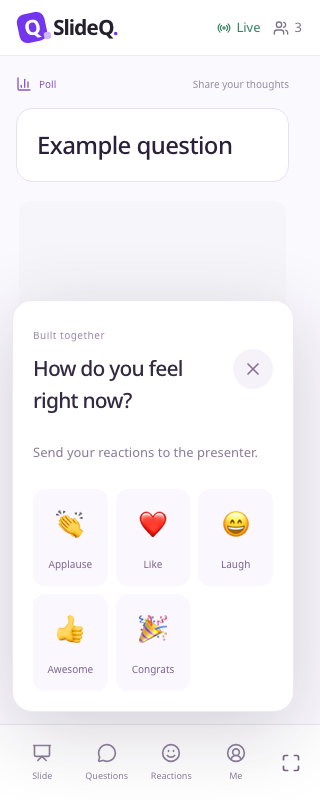
Open Reactions in the bottom bar to choose a reaction. The choices use multiple rows on narrow screens. Choose a reaction and check its send status; if sending fails, retry in the same panel.